
Open History to see the last commit

1---
2id: basic-concepts
3title: Basic Concepts and Terminology
4---
5
6This page introduces the basic concepts and terminology used in the `@tanstack/react-form` library. Familiarizing yourself with these concepts will help you better understand and work with the library.
7
8## Form Options
9
10You can customize your form by creating configuration options with the `formOptions` function. These options can be shared between multiple forms.
11
12Example:
13
15interface User {
16 firstName: string
17 lastName: string
18 hobbies: Array<string>
19}
20const defaultUser: User = { firstName: '', lastName: '', hobbies: [] }
21
22const formOpts = formOptions({
23 defaultValues: defaultUser,
24})
26
27## Form Instance
28
29A Form instance is an object that represents an individual form and provides methods and properties for working with the form. You create a Form instance using the `useForm` hook provided by the form options. The hook accepts an object with an `onSubmit` function, which is called when the form is submitted.
30
32const form = useForm({
33 ...formOpts,
34 onSubmit: async ({ value }) => {
35 // Do something with form data
36 console.log(value)
37 },
38})
40
41You may also create a Form instance without using `formOptions` by using the standalone `useForm` API:
42
44interface User {
45 firstName: string
46 lastName: string
47 hobbies: Array<string>
48}
49const defaultUser: User = { firstName: '', lastName: '', hobbies: [] }
50
51const form = useForm({
52 defaultValues: defaultUser,
53 onSubmit: async ({ value }) => {
54 // Do something with form data
55 console.log(value)
56 },
57})
59
60## Field
61
62A Field represents a single form input element, such as a text input or a checkbox. Fields are created using the `form.Field` component provided by the Form instance. The component accepts a `name` prop, which should match a key in the form's default values. It also accepts a `children` prop, which is a render prop function that takes a `field` object as its argument.
63
64Example:
65
67<form.Field
68 name="firstName"
69 children={(field) => (
70 <>
71 <input
72 value={field.state.value}
73 onBlur={field.handleBlur}
74 onChange={(e) => field.handleChange(e.target.value)}
75 />
76 <FieldInfo field={field} />
77 </>
78 )}
79/>
81
82If you run into issues handling `children` as props, make sure to check your linting rules.
83
84Example (ESLint):
85
87 "rules": {
88 "react/no-children-prop": [
89 true,
90 {
91 "allowFunctions": true
92 }
93 ],
94 }
96
97## Field State
98
99Each field has its own state, which includes its current value, validation status, error messages, and other metadata. You can access a field's state using the `field.state` property.
100
101Example:
102
104const {
105 value,
106 meta: { errors, isValidating },
107} = field.state
109
110There are four states in the metadata that can be useful for seeing how the user interacts with a field:
111
112**isTouched**: is `true` once the user changes or blurs the field
113**isDirty**: is `true` once the field's value is changed, even if it's reverted to the default. Opposite of `isPristine`
114**isPristine**: is `true` until the user changes the field's value. Opposite of `isDirty`
115**isBlurred**: is `true` once the field loses focus (is blurred)
116**isDefaultValue**: is `true` when the field's current value is the default value
117
119const { isTouched, isDirty, isPristine, isBlurred } = field.state.meta
121
122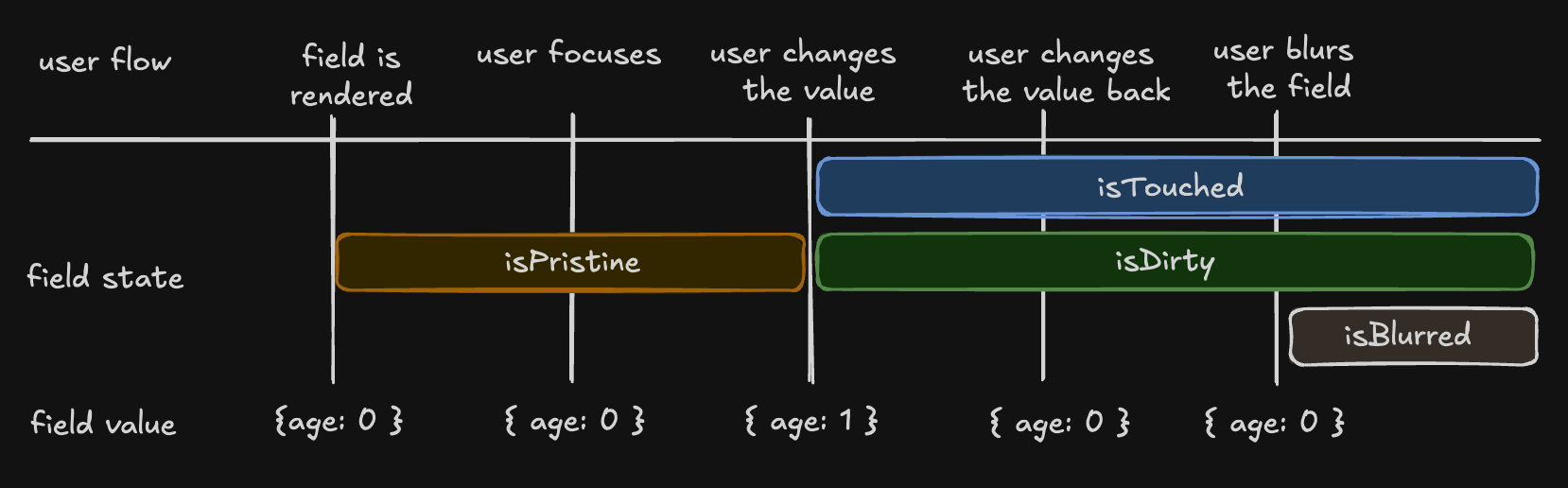
123
124## Understanding 'isDirty' in Different Libraries
125
126Non-Persistent `dirty` state
127
128**Libraries**: React Hook Form (RHF), Formik, Final Form.
129**Behavior**: A field is 'dirty' if its value differs from the default. Reverting to the default value makes it 'clean' again.
130
131Persistent `dirty` state
132
133**Libraries**: Angular Form, Vue FormKit.
134**Behavior**: A field remains 'dirty' once changed, even if reverted to the default value.
135
136We have chosen the persistent 'dirty' state model. However, we have introduced the `isDefaultValue` flag to also support a non-persistent 'dirty' state.
137
139const { isDefaultValue, isTouched } = field.state.meta
140
141// The following line will re-create the non-persistent `dirty` functionality.
142const nonPersistentIsDirty = !isDefaultValue
144
145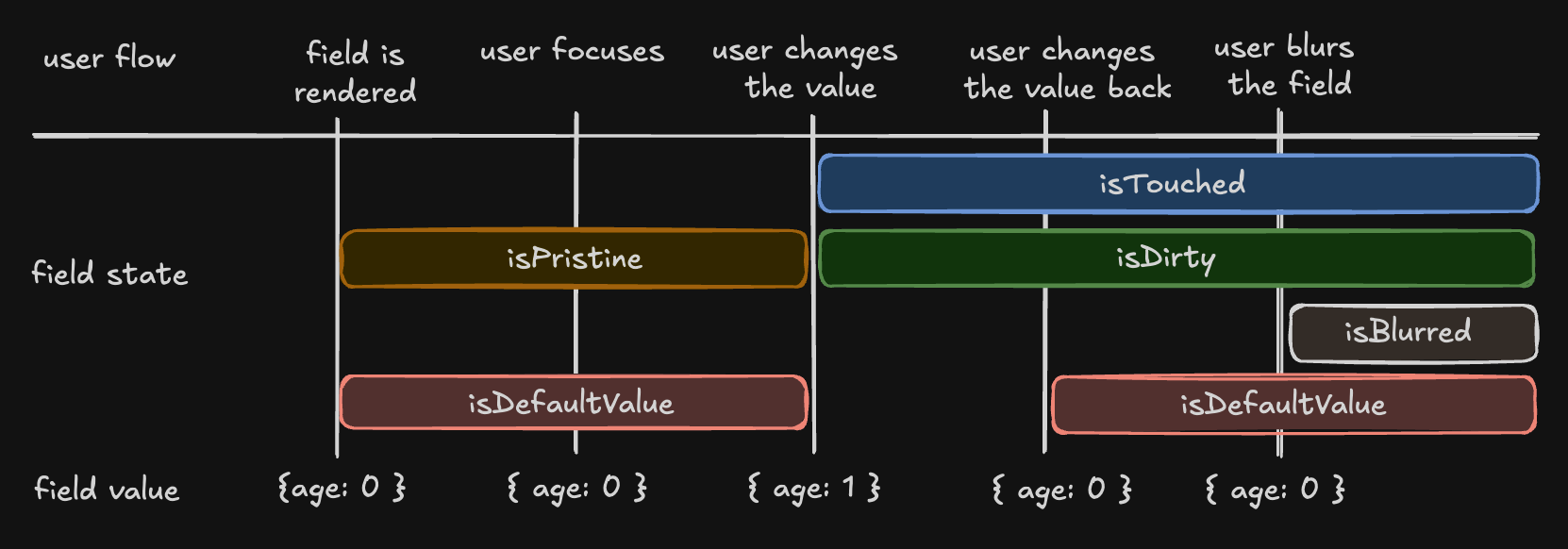
146
147## Field API
148
149The Field API is an object passed to the render prop function when creating a field. It provides methods for working with the field's state.
150
151Example:
152
154<input
155 value={field.state.value}
156 onBlur={field.handleBlur}
157 onChange={(e) => field.handleChange(e.target.value)}
158/>
160
161## Validation
162
163`@tanstack/react-form` provides both synchronous and asynchronous validation out of the box. Validation functions can be passed to the `form.Field` component using the `validators` prop.
164
165Example:
166
168<form.Field
169 name="firstName"
170 validators={{
171 onChange: ({ value }) =>
172 !value
173 ? 'A first name is required'
174 : value.length < 3
175 ? 'First name must be at least 3 characters'
176 : undefined,
177 onChangeAsync: async ({ value }) => {
178 await new Promise((resolve) => setTimeout(resolve, 1000))
179 return value.includes('error') && 'No "error" allowed in first name'
180 },
181 }}
182 children={(field) => (
183 <>
184 <input
185 value={field.state.value}
186 onBlur={field.handleBlur}
187 onChange={(e) => field.handleChange(e.target.value)}
188 />
189 <FieldInfo field={field} />
190 </>
191 )}
192/>
194
195## Validation with Standard Schema Libraries
196
197In addition to hand-rolled validation options, we also support the [Standard Schema](https://github.com/standard-schema/standard-schema) specification.
198
199You can define a schema using any of the libraries implementing the specification and pass it to a form or field validator.
200
201Supported libraries include:
202
203[Zod](https://zod.dev/) (v3.24.0 or higher)
204[Valibot](https://valibot.dev/) (v1.0.0 or higher)
205[ArkType](https://arktype.io/) (v2.1.20 or higher)
206[Yup](https://github.com/jquense/yup) (v1.7.0 or higher)
207
209import { z } from 'zod'
210
211const userSchema = z.object({
212 age: z.number().gte(13, 'You must be 13 to make an account'),
213})
214
215function App() {
216 const form = useForm({
217 defaultValues: {
218 age: 0,
219 },
220 validators: {
221 onChange: userSchema,
222 },
223 })
224 return (
225 <div>
226 <form.Field
227 name="age"
228 children={(field) => {
229 return <>{/* ... */}</>
230 }}
231 />
232 </div>
233 )
234}
236
237## Reactivity
238
239`@tanstack/react-form` offers various ways to subscribe to form and field state changes, most notably the `useStore(form.store)` hook and the `form.Subscribe` component. These methods allow you to optimize your form's rendering performance by only updating components when necessary.
240
241Example:
242
244const firstName = useStore(form.store, (state) => state.values.firstName)
245//...
246<form.Subscribe
247 selector={(state) => [state.canSubmit, state.isSubmitting]}
248 children={([canSubmit, isSubmitting]) => (
249 <button type="submit" disabled={!canSubmit}>
250 {isSubmitting ? '...' : 'Submit'}
251 </button>
252 )}
253/>
255
256It is important to remember that while the `useStore` hook's `selector` prop is optional, it is strongly recommended to provide one, as omitting it will result in unnecessary re-renders.
257
259// Correct use
260const firstName = useStore(form.store, (state) => state.values.firstName)
261const errors = useStore(form.store, (state) => state.errorMap)
262// Incorrect use
263const store = useStore(form.store)
265
266Note: The usage of the `useField` hook to achieve reactivity is discouraged since it is designed to be used thoughtfully within the `form.Field` component. You might want to use `useStore(form.store)` instead.
267
268## Listeners
269
270`@tanstack/react-form` allows you to react to specific triggers and "listen" to them to dispatch side effects.
271
272Example:
273
275<form.Field
276 name="country"
277 listeners={{
278 onChange: ({ value }) => {
279 console.log(`Country changed to: ${value}, resetting province`)
280 form.setFieldValue('province', '')
281 },
282 }}
283/>
285
286More information can be found at [Listeners](./listeners.md)
287
288## Array Fields
289
290Array fields allow you to manage a list of values within a form, such as a list of hobbies. You can create an array field using the `form.Field` component with the `mode="array"` prop.
291
292When working with array fields, you can use the `pushValue`, `removeValue`, `swapValues`, and `moveValue` methods to add, remove, swap, and move a value from one index to another within the array, respectively. Additional helper methods such as `insertValue`, `replaceValue`, and `clearValues` are also available for inserting, replacing, and clearing array values.
293
294Example:
295
297<form.Field
298 name="hobbies"
299 mode="array"
300 children={(hobbiesField) => (
301 <div>
302 Hobbies
303 <div>
304 {!hobbiesField.state.value.length
305 ? 'No hobbies found.'
306 : hobbiesField.state.value.map((_, i) => (
307 <div key={i}>
308 <form.Field
309 name={`hobbies[${i}].name`}
310 children={(field) => {
311 return (
312 <div>
313 <label htmlFor={field.name}>Name:</label>
314 <input
315 id={field.name}
316 name={field.name}
317 value={field.state.value}
318 onBlur={field.handleBlur}
319 onChange={(e) => field.handleChange(e.target.value)}
320 />
321 <button
322 type="button"
323 onClick={() => hobbiesField.removeValue(i)}
324 >
325 X
326 </button>
327 <FieldInfo field={field} />
328 </div>
329 )
330 }}
331 />
332 <form.Field
333 name={`hobbies[${i}].description`}
334 children={(field) => {
335 return (
336 <div>
337 <label htmlFor={field.name}>Description:</label>
338 <input
339 id={field.name}
340 name={field.name}
341 value={field.state.value}
342 onBlur={field.handleBlur}
343 onChange={(e) => field.handleChange(e.target.value)}
344 />
345 <FieldInfo field={field} />
346 </div>
347 )
348 }}
349 />
350 </div>
351 ))}
352 </div>
353 <button
354 type="button"
355 onClick={() =>
356 hobbiesField.pushValue({
357 name: '',
358 description: '',
359 yearsOfExperience: 0,
360 })
361 }
362 >
363 Add hobby
364 </button>
365 </div>
366 )}
367/>
369
370## Reset Buttons
371
372When using `<button type="reset">` with TanStack Form's `form.reset()`, you need to prevent the default HTML reset behavior to avoid unexpected resets of form elements (especially `<select>` elements) to their initial HTML values.
373Use `event.preventDefault()` inside the button's `onClick` handler to prevent the native form reset.
374
375Example:
376
378<button
379 type="reset"
380 onClick={(event) => {
381 event.preventDefault()
382 form.reset()
383 }}
384>
385 Reset
386</button>
388
389Alternatively, you can use `<button type="button">` to prevent the native HTML reset.
390
392<button
393 type="button"
394 onClick={() => {
395 form.reset()
396 }}
397>
398 Reset
399</button>
401
402These are the basic concepts and terminology used in the `@tanstack/react-form` library. Understanding these concepts will help you work more effectively with the library and create complex forms with ease.