Versions and caching
You update a screenshot in your docs, and every page must show the new one. Or you send a launch video to a partner site, and that video must never change.
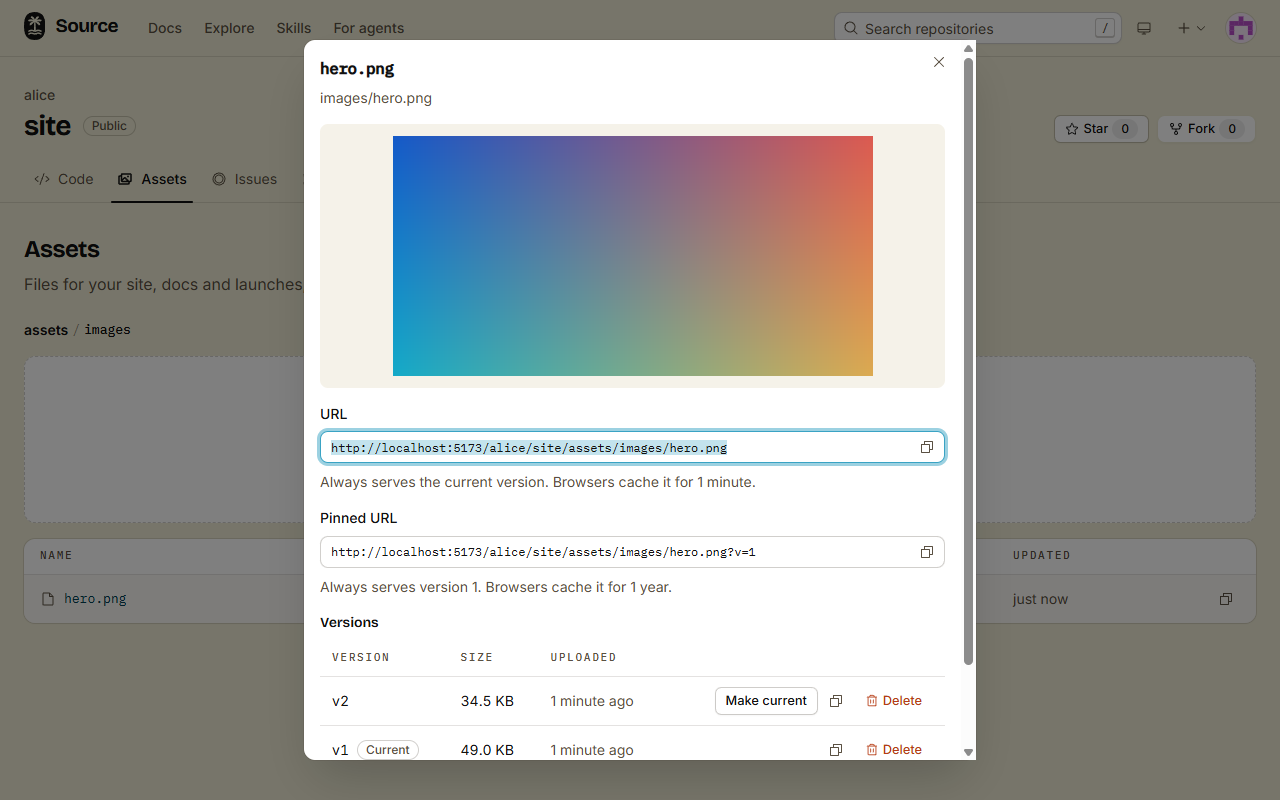
Each upload to the same path adds a version of the asset. Each asset has two URLs: one follows the current version, and one stays on a single version.
Pick a URL
| URL | Serves | Browsers cache it for |
|---|---|---|
/<owner>/<repo>/assets/<path> | The current version | 1 minute |
/<owner>/<repo>/assets/<path>?v=<n> | Version n only | 1 year |
- When your pages must show your next update, link to the URL.
- When the file must never change, link to the pinned URL.
In the Assets tab, click the name of a file. The dialog shows both: URL with Copy URL, and Pinned URL with Copy pinned URL.
Each answer has an ETag. When the cache time ends, the browser asks again. If the file did not change, the forge answers 304 Not Modified with no body, so the short cache time costs little.
Replace a file
- Upload a file to the same path. In the Assets tab, open its folder and drop a file with the same name. From a terminal, run
src asset push dist/hero.png --to images. - The file becomes the next version (2, then 3, and so on), and it is current at once.
- Reload a page that uses the URL. In about 1 minute, it shows the new file.
If the bytes are the same as the current version, the forge adds no version. src asset push then prints Unchanged images/hero.png.
Roll back
- In the Assets tab, click the name of the file.
- In Versions, click Make current on the version that you want.
From a terminal, run src asset restore images/hero.png 2.
The URL serves that version again in about 1 minute. The newer versions stay. The next upload gets a new number, after the highest number so far.
Delete old versions
Old versions count toward the 10 GiB of the repository until you delete them.
- One version: in Versions, click Delete on that version. From a terminal, run
src asset delete images/hero.png --version 1 --yes. - The asset with all its versions: click Delete asset. From a terminal, run
src asset delete images/old.png --yes.
What a delete does:
- If you delete the current version, the newest version left becomes current.
- If you delete the only version, the asset goes too.
- The pinned URL of a deleted version stops working. A browser that cached it keeps its copy until its cache time ends.
- The forge never gives a version number twice, also after a delete. So a pinned URL never serves other bytes.
- You cannot undo a delete.
Your docs show the new screenshot in about a minute, and the launch video on the partner site stays the same.