Spam and bans
Spam accounts open issues and pull requests faster than you can close them. You want the spam closed, the worst accounts banned, a say on the other bans, and a fast way to undo a ban that was wrong.
When an admin turns it on, the spam agent reads each new issue and pull request. Its model says only if the content is spam. Code then decides what to do, from that verdict, the audit verdict, and numbers about the account from the whole forge. The model never bans.
What the bot does by default
The spam agent is off by default. Step 1 turns it on. The default ban policy is Ban only on hard proof. A ban holds in this repository only.
- Hard proof: the audit found the pull request malicious. Or the account has 3 or more bans on the forge, and posts in a burst right now. The bot closes the item and bans the author.
- Spam content, no hard proof: the bot closes the item. It does not ban. If the account also has a soft signal (see below), the bot adds a suggested ban to the Bans page, and you decide.
- No spam: the bot does nothing.
When the bot closes an item, it adds the label spam and posts one comment. For example: "The bot closed this issue as spam, and banned its author from acme/app. An admin of acme/app can lift the ban. A maintainer can reopen it."
The comment names no signal and no suggested ban. The numbers about the account are for the admins, on the Bans page.
1. Turn on the spam agent, and pick a ban policy
- Open Agents, then Open factory settings.
- Under Spam, select Use this agent, then click Save Spam.
- Go to Rules for all agents, and pick a Ban policy.
- Pick where A ban applies to: The repository only, or Every repository of the owner.
- Click Save rules.
| Ban policy | The bot bans when | Otherwise, for spam content |
|---|---|---|
| Ban only on hard proof | There is hard proof. | It closes the item. With a soft signal, it suggests a ban. |
| Never ban, only suggest | Never. | It closes the item. With hard proof or a soft signal, it suggests a ban. |
| Ban on weaker proof too | There is hard proof, or the content is spam and the account has 2 or more soft signals. | It closes the item. With 1 soft signal, it suggests a ban. |
The soft signals are:
- The account is less than 7 days old.
- It opened issues and pull requests in 3 or more repositories in the last 6 hours.
- Screening rejected 3 or more of its issues and pull requests.
An organization owner can turn on the spam agent and set the policy for all repositories of the organization, on the organization's Software factory tab.
2. Decide on a suggested ban
The Bans page has three tabs: Banned, Suggested and Appeals. The number on the Suggested tab is the count of suggested bans that wait for you.
- Open Settings, then Bans (
/<owner>/<repo>/settings/bans). - Click the Suggested tab.
- Read the row. It shows the account, when the bot suggested the ban, the item that the bot closed (for example
#12), the reasons, and the Signals of the account. - To ban the account, click Ban, then Ban account in the dialog. The ban has the reason spam, and the account moves to the Banned tab.
- If you do not want a ban, click Dismiss.
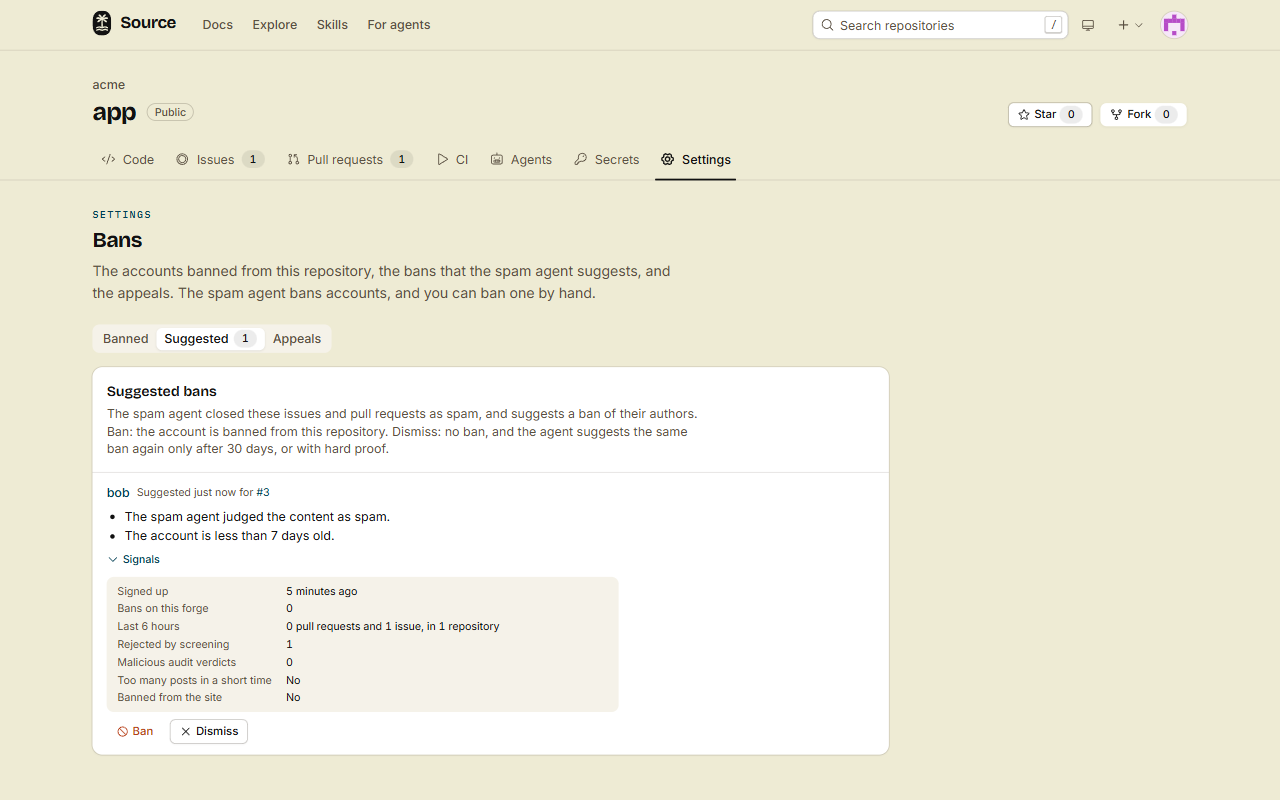
After Dismiss, the bot does not suggest a ban of the same account again for 30 days. It suggests one sooner only with hard proof.
The bot keeps one suggested ban for each account. When the account posts spam again, the bot updates that suggestion with the new item, reasons and signals. It never suggests a ban of an account that is banned already, or that has write access or more.
3. Undo a wrong ban
- Open Settings, then Bans (
/<owner>/<repo>/settings/bans). - On the Banned tab, find the account. Click Signals to see why the bot banned it.
- Click Unban, then Unban again in the dialog.
- Open the item that the bot closed. Reopen it, and remove the label
spam.
The account can open issues and pull requests, comment, review and fork again.
A ban that holds in every repository of an organization is on the organization's Bans tab (/organizations/<org>/bans). When A ban applies to is Every repository of the owner, the suggested bans are there too. Only the owners of the organization can lift a ban, or decide on a suggested ban, there.
Done
The bot closes spam, and bans an account only on the proof that your policy asks for. It suggests the other bans to you on the Suggested tab. You can lift a wrong ban from the Bans page.
Ban an account by hand
On the Banned tab of the Bans page, type the username in Ban an account, then click Ban account. A banned account:
- Can still read the repository.
- Cannot open issues or pull requests, comment, review or fork there.
- Gets only the spam agent on its new items. The other agents do not run for it.
You cannot ban an account that has write access or more. Remove its role first. For an organization ban, you cannot ban a member of the organization, or an account with write access to one of its repositories.
Appeals
A banned person can send an appeal from the repository page. It shows on the Appeals tab of the Bans page. The number on the tab is the count of open appeals.
- Approve lifts the ban.
- Reject keeps the ban. The person can appeal again after 30 days.
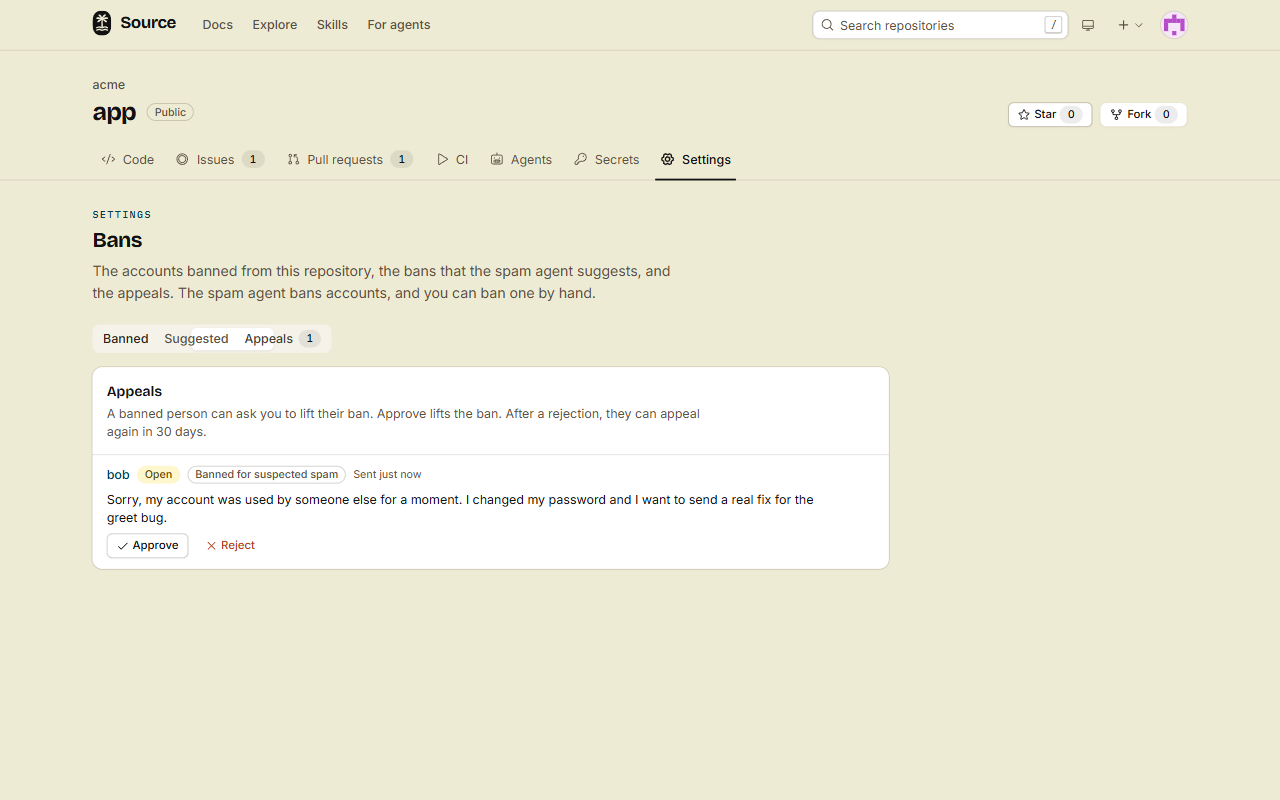
Screening reads each appeal first. It refuses spam. A badge such as Possible prompt injection marks other text that screening is not sure about.
With the CLI
Repository admins can use these commands:
src ban list
src ban signals someuser
src ban add someuser
src ban remove someuser
src ban suggestions
src ban accept <id>
src ban dismiss <id>
src ban suggestions lists the open suggested bans, each with its id. Add --state banned or --state dismissed to see the decided ones. src ban accept bans the account of a suggestion, and src ban dismiss dismisses it.
For the bans of an organization, add --org <org> to list, add, remove, suggestions, accept and dismiss. Only the owners of the organization can use them.
src ban signals shows counts only. It never names another repository. The REST routes and MCP tools are in Use the REST API and Connect over MCP. Appeals are in the web app only.