Your profile and image
People see your name and your image next to your repositories, issues and comments. Without an image, a pattern made from your name shows. Give your account and your organizations a real name, links and a picture, so that people know who they work with.
Your account
- Open the account menu in the header, then click Edit profile.
- Fill in the fields that you want: Display name, Bio, Website, Public email, X handle and Location. Each field is optional.
- Click Save profile.
- Under Image, choose a file in New image. A window opens to crop it.
- Drag the image to move it, and use the slider to zoom. The circle shows what people see. Then click Save image.
The public email can be different from the email that you sign in with. Everyone can see it.
An organization
Owners can do this, and members whose role lets them manage the settings.
- On the page of the organization, click Manage organization. The General tab opens.
- Change the fields under Profile, then click Update profile.
- Under Image, choose a file in New image. Crop it in the window that opens, then click Save image. An organization's image shows as a rounded square.
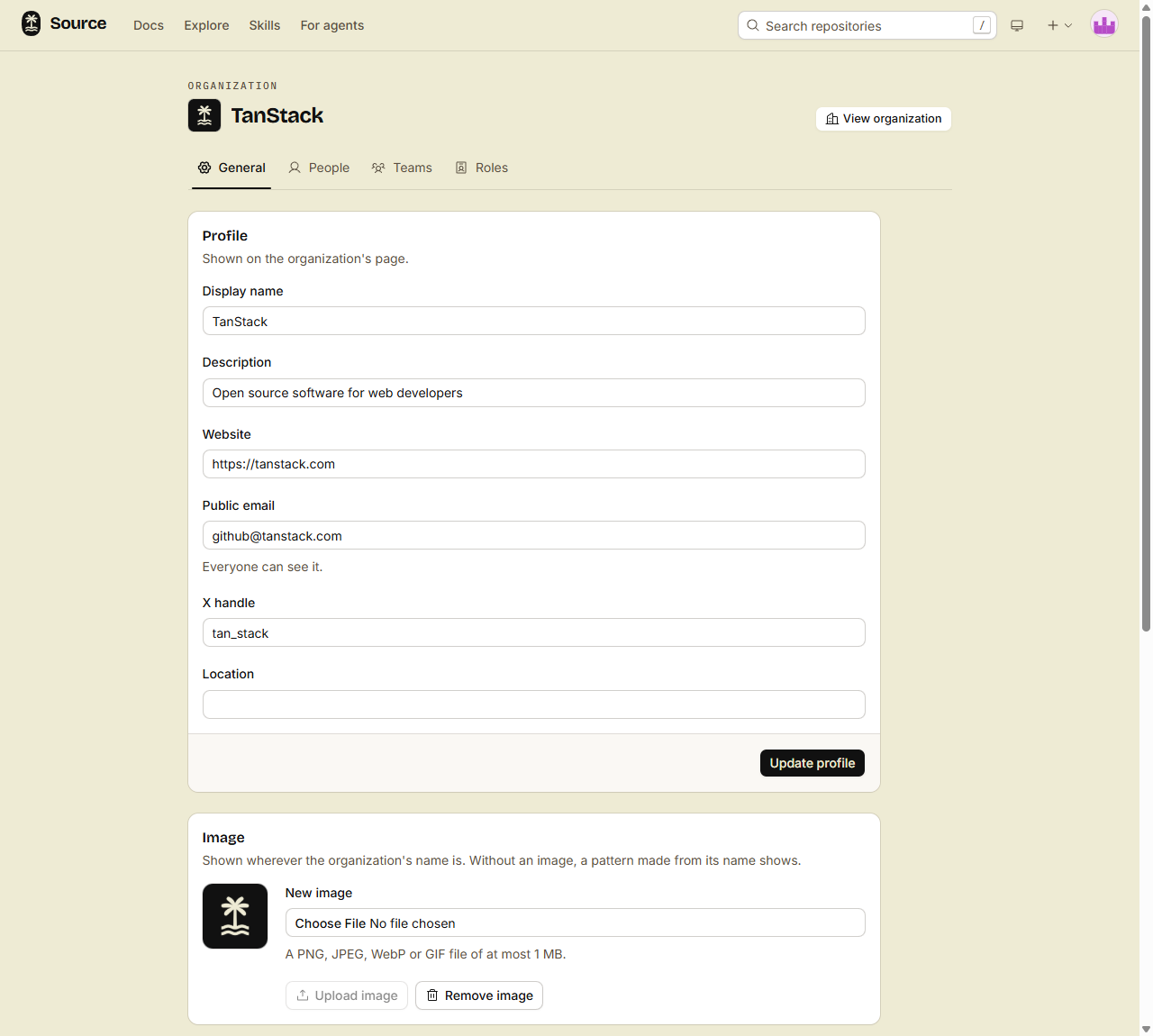
An organization that you import from GitHub gets its profile and its image from GitHub. You can change them here at any time.
Rules for images
- Files: PNG, JPEG, WebP or GIF. SVG is refused.
- Size: the web app saves the cropped image at 460 by 460 pixels, the size that GitHub uses. An animated GIF keeps only its first frame.
- From a script:
src, MCP and REST send the file as it is, with no crop. The file can be at most 1 MB. Use a square image. - Remove: click Remove image to show the pattern again.
From a script or an agent
Use your own token. Agent tokens cannot change a profile or an image.
With the CLI:
src profile edit --display-name "Ada Lovelace" --location London
src profile set-image avatar.png
src profile edit --org acme --description "Rockets for everyone"
src profile set-image logo.png --org acme
src profile view acme
A field that you leave out keeps its value. An empty value removes the field. src profile remove-image removes the image.
Over MCP, the tools are update_profile, update_org_profile, set_avatar and remove_avatar. set_avatar takes the image as base64. Over REST, the routes are PATCH /user, PATCH /orgs/{org}, and PUT or DELETE on /user/avatar and /orgs/{org}/avatar.
Done
Your name, your links and your image show on your page and next to your work. Your organizations show theirs.