Import a GitHub organization
Your team keeps dozens of repositories in a GitHub organization. You want all of them on TanStack Source, with the name, the logo and the links of the organization. And you do not want to import them one at a time.
The GitHub import copies the organization in one go: its profile and image, the repositories that you pick, and their issues and pull requests. It also imports your own GitHub repositories in the same way.
To import an organization, you must be an owner of it on GitHub.
1. Connect GitHub
- Click + in the header, then Import from GitHub.
- Click Connect GitHub.
- On GitHub, let TanStack Source read your organizations and your repositories.
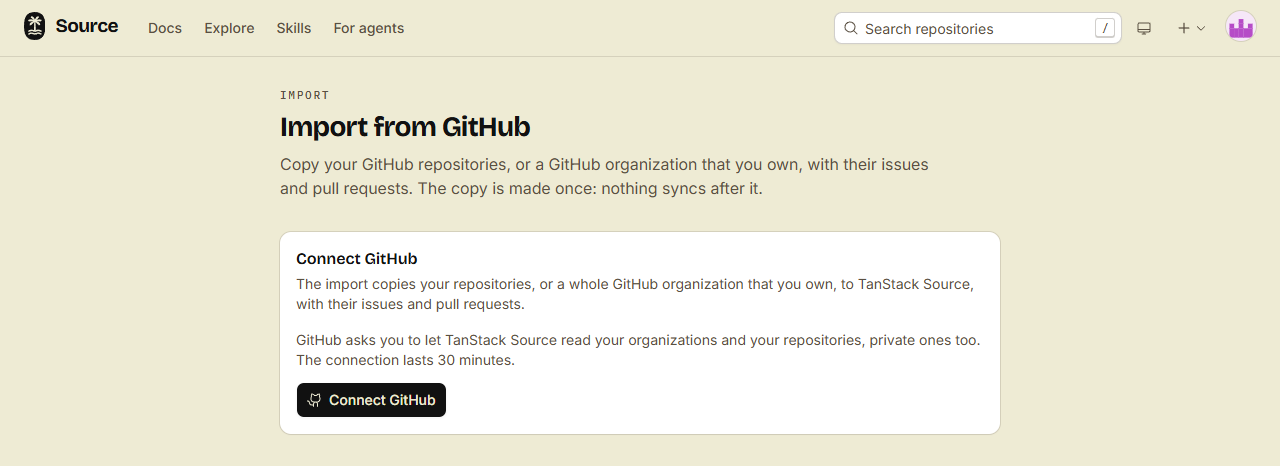
The connection lasts 30 minutes. Each import that you start ends it, so connect again before the next import.
2. Pick the organization and its repositories
- Under Choose what to import, click the organization. The first row is your own GitHub account.
- Read the line above the list. It tells you what happens to the name of the organization here.
- Check the repositories that you want.
The list is ready to import as it is:
- Each repository is checked, except forks.
- A repository that is here already shows Already here, and the import skips it.
- Private repositories stay private. Archived repositories import as normal repositories.
3. Start the import
- Keep Import issues and pull requests on. It copies every issue and pull request, with their comments and reviews.
- If you want to read open items before they show, turn on Screen open issues and pull requests.
- Click Import. The button shows how many repositories you checked.
The page of the organization opens.
4. Watch the progress
Each repository shows a badge while it imports, with the step that it is on.
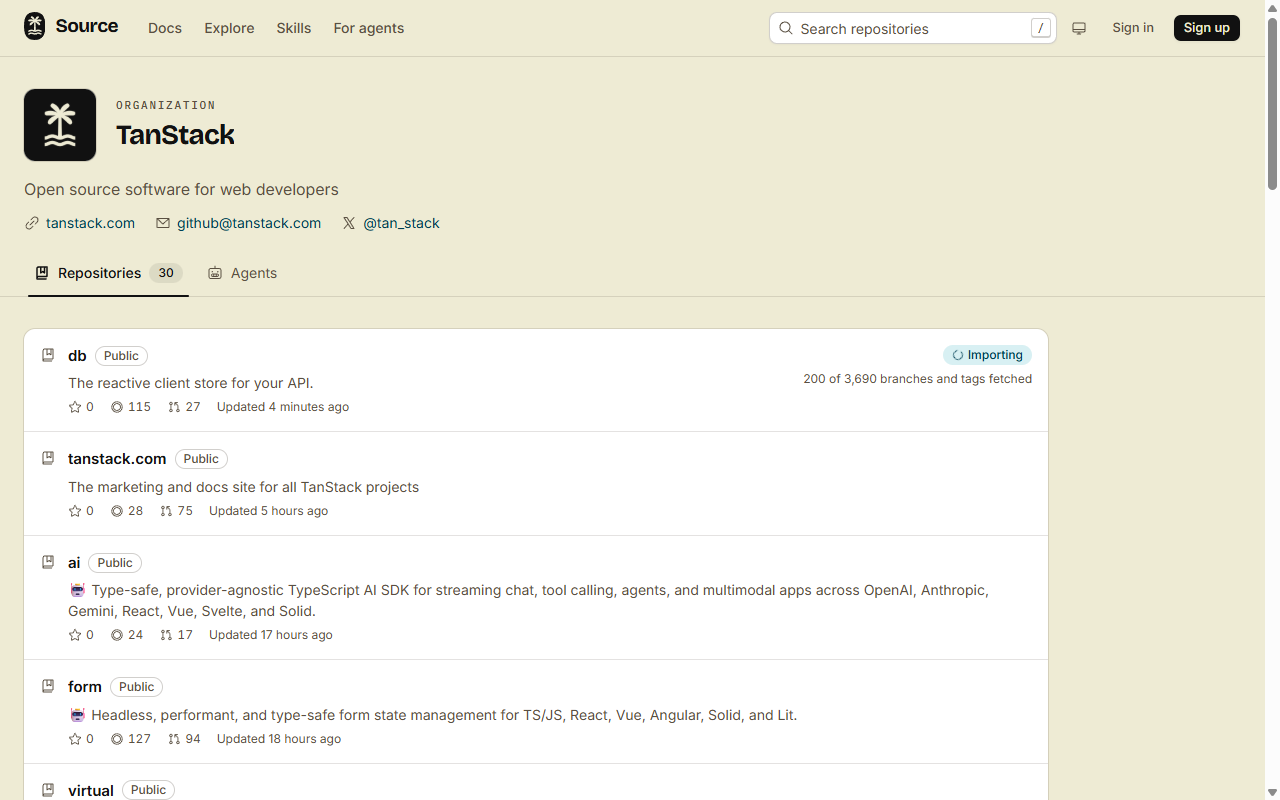
Several repositories import at the same time. If GitHub's rate limit stops an import, the import waits and then continues.
If a repository shows Failed, the reason is under the badge. To start it again:
- Click Retry next to the badge.
- Click Connect GitHub, then Retry.
A failed repository is deleted and imported again. If only its issues and pull requests failed, their import continues from where it stopped.
What comes over
- Profile: the display name, description, website, public email, X handle and location.
- Image: the avatar of the organization. You can change it later: see Your profile and image.
- Repositories: the git history, the issues and the pull requests, as described in Import from GitHub.
- People: each member of the GitHub organization who signed in here with GitHub gets an invitation. Invite the others yourself: see Bring your team.
The import is a one-time copy. Changes on GitHub after the import do not come over.
If the name is taken here
The organization here gets the name that it has on GitHub. If nothing here has that name, the import makes the organization, and you are its owner.
If the name is taken, the line above the list tells you which case you are in:
- An organization that you own here: the import goes into it. Only its empty profile fields get the values from GitHub.
- An organization that another person imported from the same GitHub organization: the import stops. Ask that person for access.
- An organization or an account that was made before organization imports started here: it keeps the name, and the import stops.
- A newer organization of another person: the import deletes that organization and its repositories. You must check I understand first.
- A newer account of another person: the import renames that account to the name with
-1after it, or the next free name. Its repositories move with it. You must check I understand first.
Done
Your organization is on TanStack Source, with its profile, its image, its repositories and their issues and pull requests.
Next: Switch from GitHub has the other steps of the move: your clones, CI and branch rules.